Mantis360 · Getting Started Guide
Mantis360 Getting Started
This guide covers everything you need to get Mantis360 running — from installing your first vulnerability management agent to understanding the exposure score, risk ranking, auto-remediation, network scanning, and compliance reporting. Follow steps in order if you're new, or jump to any section via the sidebar.
Overview
Mantis360 is a cloud-delivered vulnerability management platform. The management portal is at 360.mantisops.net — there is no server software to install. The only on-premises component is the lightweight agent installed on each monitored endpoint, and optionally a network probe for agentless network scanning.
Core concepts
| Concept | Description |
|---|---|
| Asset | Any endpoint, network device, or cloud resource monitored by Mantis360. |
| Agent | Software installed on an endpoint that reports software inventory and system state every 60 seconds. |
| Finding | A specific CVE matched against software on a specific asset. One asset can have many findings. |
| Network Probe | A binary deployed to any network segment that discovers and scans hosts without requiring agents on those hosts. |
| STIG Bundle | A set of compliance checks (CIS, DISA, or custom) evaluated against an asset's configuration. |
| Exposure score | One number from 0 to 100 with an A–F grade, for all your clients, each client and each asset. Higher is better. See Exposure Score. |
| Finding risk | CVSS base score × EPSS probability — used to rank individual findings by actual exploitability. |
Finding Your Way Around
The first time you sign in, Mantis360 opens on Exposure; after that it reopens the page you used last. The labelled sidebar on the left groups every page:
| Section | Pages |
|---|---|
| Overview | Exposure, Dashboard, Insights, Trends |
| Findings | Vulnerabilities, Attack surface, Cloud infrastructure, Identity, Identity threats, Events, Alerts |
| Remediate | Remediations, Resolved, Run history |
| Inventory | Assets, Software, AI usage, Updates |
| Compliance | Audit, Frameworks, Risk assessment, Reports |
| Tools | Scan, OS fingerprint, SSL check, DNS lookup, HTTP headers (these need an online probe) |
| Settings | Admin, Activity and API keys (admins), Billing & usage, Preferences |
- Collapse sidebar shrinks the sidebar to a rail of icons; on a phone it opens as a drawer from the menu button. The plan meter near the bottom of the sidebar shows assets used against your plan.
- Product and client switchers — at the top of the sidebar. Jump between MantisRMM, Mantis360, MantisNMS and the Customer Portal, and choose All clients, one company, or one of its sites. Every page, including the exposure score, follows the client you pick.
- Search — press Ctrl K (⌘K on a Mac) or click Search or jump to… to find pages and clients, or run actions such as Run a scan and See the fixes that remove the most risk.
- Top bar — the breadcrumb shows where you are. Chips show scans that are running (with Stop) and probes waiting for approval. The probe picker chooses the probe the scan tools use.
- Your menu — click your account at the bottom of the sidebar for Theme (Dark or Light), Rows (Comfortable or Compact), Preferences, Billing & usage, Copy tenant ID and Sign out. Mantis360 starts in the dark theme; once you choose one, your choice is kept.
Install Agents
Agents report software inventory to Mantis360 for CVE matching. They run as a lightweight background service on the endpoint and communicate outbound over HTTPS.
Download the agent
Copy the one-line install command for your platform from the Customer Portal → Agents & Probes, or in Mantis360 from Inventory → Assets → + Enroll Agent. The commands there already contain your enrollment code.
Install commands use your enrollment code (it starts with mek_). Find it in the Customer Portal (portal.mantisops.net) → Agents & Probes → Enrollment codes; admins and owners can see it. One code enrolls the endpoint into Mantis360 and every other MantisOps product your account is licensed for — no separate 360 token is needed. The one-line installers:
PowerShell, as Administrator:
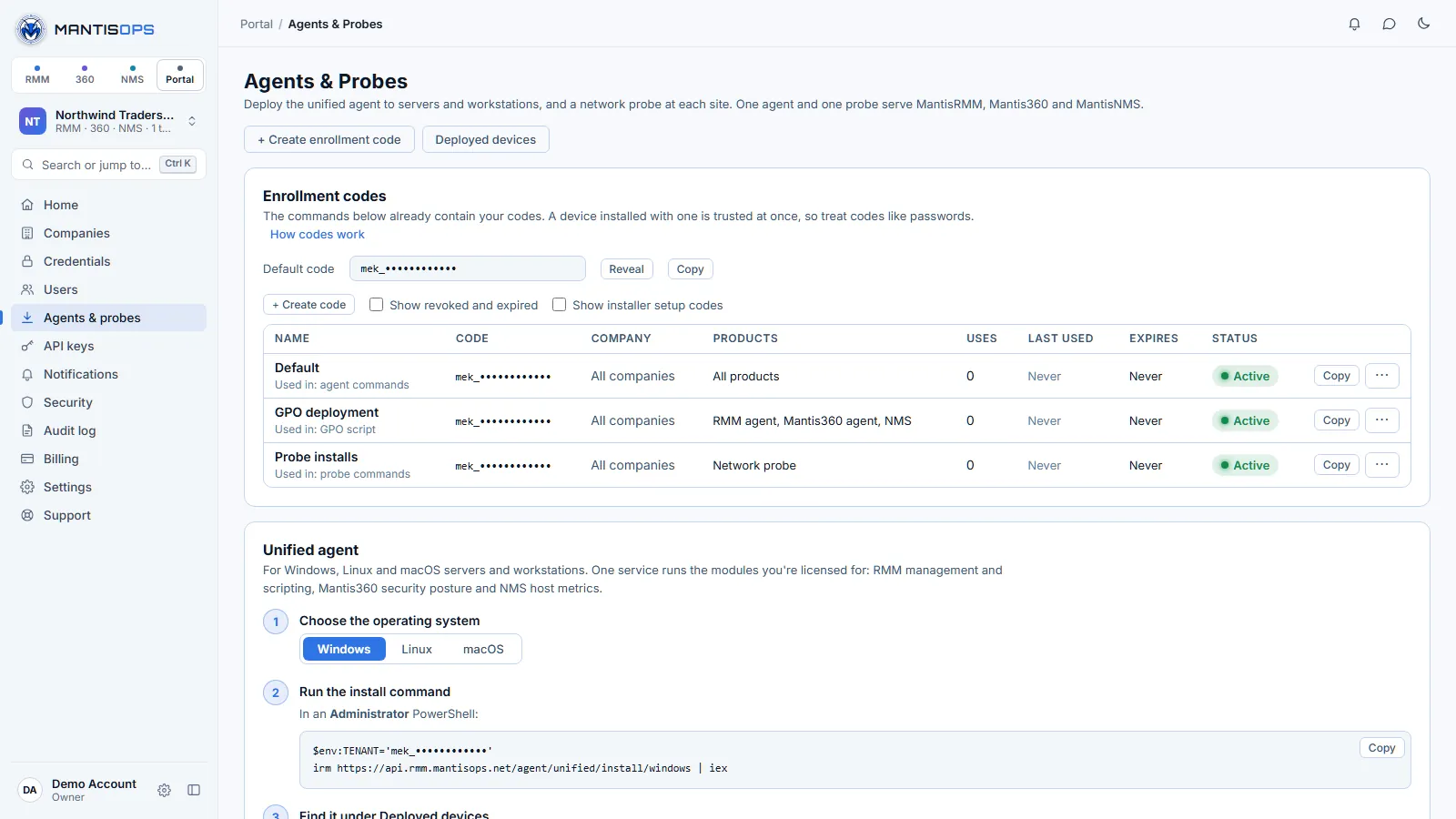
Windows installation
Run the Windows command above in an elevated PowerShell. The agent installs to C:\Program Files\MantisOps as the Windows service MantisAgent and starts automatically. For mass deployment, use the Portal's Group Policy script or run the same command from Intune or another RMM: see Mass deployment.
Linux installation
Run the Linux command above as root. It installs /usr/local/bin/mantis-agent and the systemd service mantis-agent:
Supported on x86-64 (amd64) and ARM64 distributions that use systemd.
macOS installation
Run the macOS command above in Terminal. It installs the signed, Apple-notarized agent package (/Applications/MantisAgent.app) and a launch daemon that starts at boot. See macOS in the agent install guide for privacy permissions and MDM deployment.
Unattended install — target a specific tenant
The one-line commands above are non-interactive, so scripted and mass deployment use the same commands. Enrolling with a code needs agent 2.0.194 or later; the install commands always download the latest agent. Step-by-step instructions for Group Policy, Intune and macOS MDM, and the agent's command-line options, are in the agent install guide. To place hosts in a Mantis360 site, pick the site after clicking + Enroll Agent: the command in Enroll a new endpoint agent adds the site's install token as ENROLL_360.
First findings
Within 60–90 seconds of installation, the agent performs its first check-in. Mantis360 immediately matches the software inventory against the NVD CVE database. If any installed software has known CVEs, findings appear under Findings → Vulnerabilities within 2–3 minutes of the first check-in, and the exposure score updates to include them.
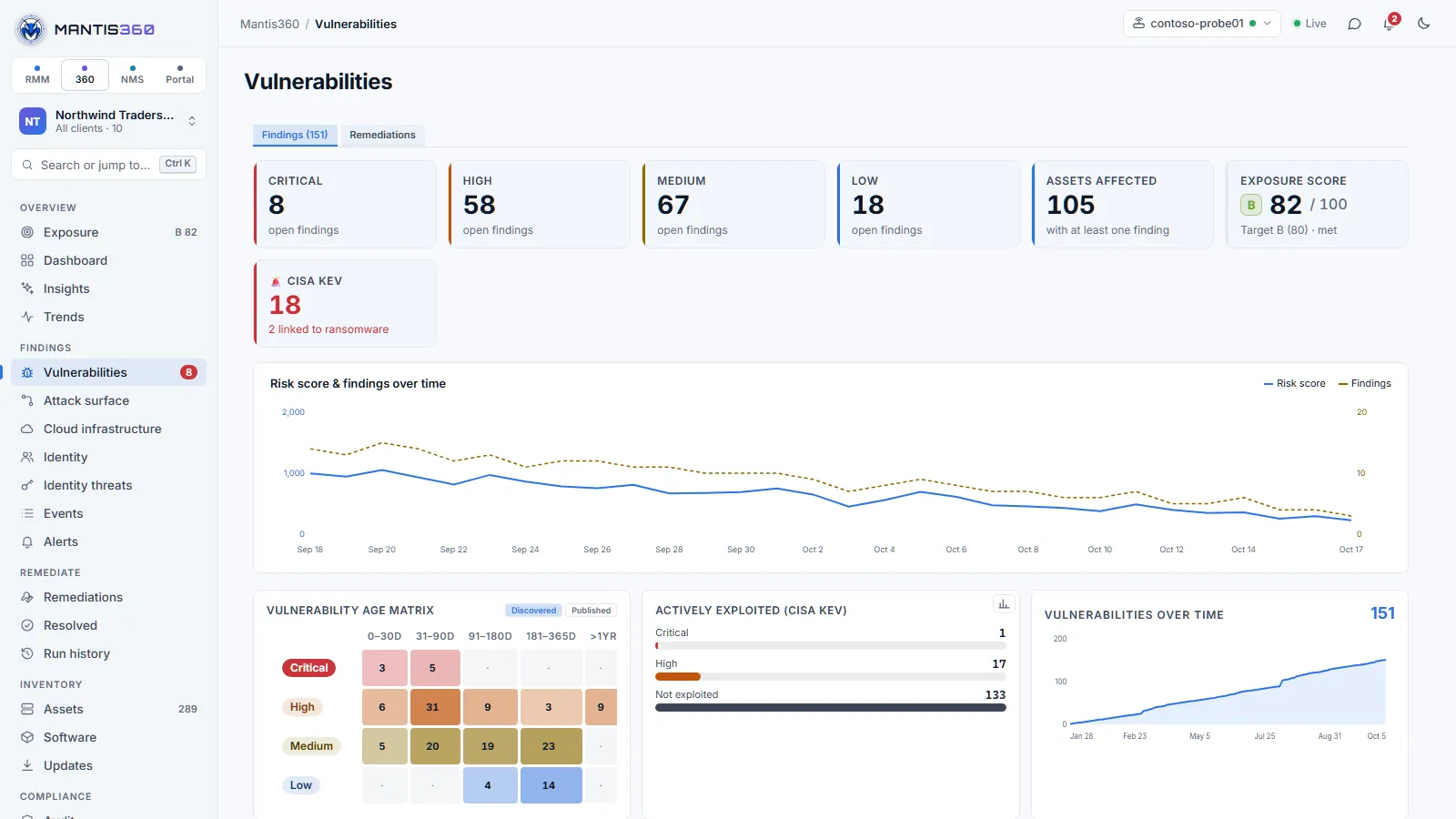
Vulnerability Findings
A finding is the association between a specific CVE and a specific asset where the vulnerable software is installed. The same CVE on 10 assets = 10 separate findings, each with its own lifecycle.
Finding states
| State | Meaning |
|---|---|
| Open | CVE matched to installed software on the asset. Requires action. |
| Auto-remediated | Mantis360 detected the vulnerable software was removed during a check-in. Closed automatically. |
| Manually remediated | A user marked the finding as resolved — e.g., mitigating control applied. |
| Accepted risk | Finding is acknowledged but intentionally left open (e.g., legacy system). |
| False positive | CVE match was incorrect. Can be dismissed per-finding or per-CVE globally. |
Finding severity
Severity is derived from CVSS but can be escalated:
- CRITICAL — CVSS ≥ 9.0, or any CISA KEV finding (automatically escalated)
- HIGH — CVSS 7.0–8.9
- MEDIUM — CVSS 4.0–6.9
- LOW — CVSS < 4.0
Exposure Score
Overview → Exposure sums up your security exposure as one score from 0 to 100, where higher is better, with a letter grade. There's a score for all your clients together, for each client (company) and for each asset. It replaces the open-ended "total risk" number earlier versions showed. The grade also appears next to Exposure in the sidebar, on dashboard widgets and in the Assets list.
| Grade | Score |
|---|---|
| A | 90–100 |
| B | 80–89 |
| C | 70–79 |
| D | 60–69 |
| F | Below 60 |
The grade comes from the rounded score, so the number and the letter always agree: 79.6 shows as 80, a B.
How the score is calculated
- Every open finding is weighed by how severe it is (its CVSS score, squared, so a CVSS 10 counts four times a CVSS 5), how likely it is to be exploited (its EPSS probability; a finding on the CISA KEV list counts as certain), how long it has been open (up to 50% more after six months) and whether the asset can be reached from the internet (twice as much).
- Problems on one asset level off. Fifty CVEs in one outdated browser make one compromisable laptop, not fifty.
- The 100 points are split across six categories, and the score is 100 minus the points lost in each:
| Category | Points |
|---|---|
| Known-exploited vulnerabilities (CISA KEV) | 25 |
| Unpatched software and OS vulnerabilities | 20 |
| Risky exposed services and legacy protocols | 15 |
| Identity and cloud account weaknesses | 15 |
| Unsupported operating systems | 15 |
| Endpoint hardening gaps | 10 |
In each category, the points lost depend on how much of the client's fleet is affected and on how bad the single worst asset is. Assets are weighted by importance: domain controllers count most, then database, file, mail and hypervisor servers, other servers and network devices, web servers, workstations, and printers and IoT devices least. Tagging an asset Critical, High or Low business criticality (or crown-jewel) adjusts its weight. Because of this, one exposed domain controller still shows on a large fleet, and the same mix of problems scores the same on 10 assets as on 1,000.
A known-exploited CVE counts in both the KEV and the unpatched categories, so a CVE being added to the KEV list can only lower your score. Fixing anything never lowers it. With All clients selected, the score is the average of the client scores, weighted by the importance of each client's assets, so one client's worst server can't sink the whole portfolio. Each asset gets its own score from its own findings; its importance only decides how much it counts in its client's score.
What the Exposure page shows
- The headline — your grade and score in one sentence, how far you are from your target and how many fixes would close the gap, plus how the score has changed. Choose 30d, 90d or 1y for the range.
- Your target, and with All clients selected and at least two scored clients, the Best client and the one that Needs you most. Click a client to switch to it.
- Score over time — the trend over the chosen range, drawn over A–F grade bands with your target line, and labels on the biggest moves (for example a newly found known-exploited CVE, or a day with many fixes). The first time scores are calculated, Mantis360 fills in the last 90 days from your finding history.
- What's holding the score down — the points lost in each category, which add up to 100 minus your score. Click a category to see its biggest items (CVEs, fixes, operating systems or accounts) and the points fixing each one alone would recover.
- Fixes that remove the most risk — findings grouped by the fix that closes them and ranked by score gained, not by how many findings they close. Each fix's gain assumes the fixes above it are done, and a line marks the point where your target is reached. Each fix shows the findings it closes, the assets and clients affected and the effort (for example a patch with a reboot, or a config change). Deploy appears when an affected asset has a MantisRMM agent; otherwise use View details.
- The fix drawer — click a fix to see why it matters (CVSS, EPSS, known exploitation, blast radius), the affected assets and findings, and how to fix it, with Deploy with MantisRMM and Open in Remediations.
- Clients — every client by grade, lowest first, with its 90-day trend, critical, known-exploited and overdue findings, and its biggest single fix.
Your target
The target starts at B (80) and applies to every client. Admins can change it with the Target button on the Exposure page: choose a grade (A 90, B 80, C 70 or D 60) or a score from 1 to 100, optionally a date to Reach it by, and click Save target. Other users see the target but can't change it.
Remediation SLAs
Each finding is due a set number of days after it was first seen, based on its severity:
| Finding | Due within |
|---|---|
| Critical | 7 days |
| High | 30 days |
| Medium | 90 days |
| Low | 180 days |
| Known-exploited (CISA KEV) | 14 days after it became known-exploited or was first seen, or its severity deadline if that's sooner |
Unsupported operating systems and hardening checks don't have a deadline. The Remediation SLAs tiles on the Exposure page show, for the last 90 days, the share of critical and high findings fixed on time (the goal is 90%), the mean time to remediate, and how many findings are overdue now. Only fixed findings count as on time; accepting a risk or marking a false positive isn't a fix. On Vulnerabilities, the Overdue filter lists findings past their severity deadline.
Finding Risk Ranking (CVSS × EPSS)
Within the findings list, Mantis360 ranks individual findings by a combined risk score that accounts for both the severity of a vulnerability and the probability it will actually be exploited. (The 0–100 exposure score above is the overall measure; this ranking orders the findings themselves.)
What is EPSS?
EPSS (Exploit Prediction Scoring System) is a machine-learning model from FIRST.org that predicts the probability a given CVE will be exploited in the next 30 days, based on threat intelligence signals. Scores range from 0 to 1 (0% to 100% probability).
The risk ranking formula
A CVSS 9.8 (Critical) CVE with an EPSS of 0.02 (2% exploit probability) scores: 9.8 × 0.02 = 0.196
A CVSS 6.5 (Medium) CVE with an EPSS of 0.85 (85% actively exploited) scores: 6.5 × 0.85 = 5.525
The medium-severity CVE with high exploit probability ranks far higher — because it represents a more immediate real-world threat. This cuts the actionable vulnerability list by up to 90% compared to CVSS-only prioritization.
Auto-Remediation
Mantis360 closes findings on the agent's next check-in rather than waiting for the next scheduled scan. When the Mantis360 agent checks in, it reports the current installed software inventory. If a previously vulnerable piece of software is no longer present, Mantis360 automatically closes the finding.
How it works
Vulnerability found
Agent checks in → 7-Zip 22.01 is in the inventory → Mantis360 matches CVE-2023-31102 (High) → Finding created: OPEN.
Software removed
Technician uninstalls 7-Zip 22.01 via Winget, manual uninstall, or automated script.
Auto-close on next check-in
Agent checks in (within 60s) → 7-Zip is no longer in the inventory → Mantis360 marks finding as Auto-remediated with a timestamp. No manual action needed.
Manual remediation
If you've applied a mitigating control (e.g., WAF rule, network isolation, compensating control) rather than removing the software, you can mark findings as remediated yourself. Go to Remediate → Remediations, expand the fix, and under Bulk action click Mark Remediated. These findings are recorded as remediated manually (by an operator), separately from auto-remediation. Mark Accepted Risk and Mark False Positive ask for an optional review date and reason; with a date set, the findings reopen for review when it passes.
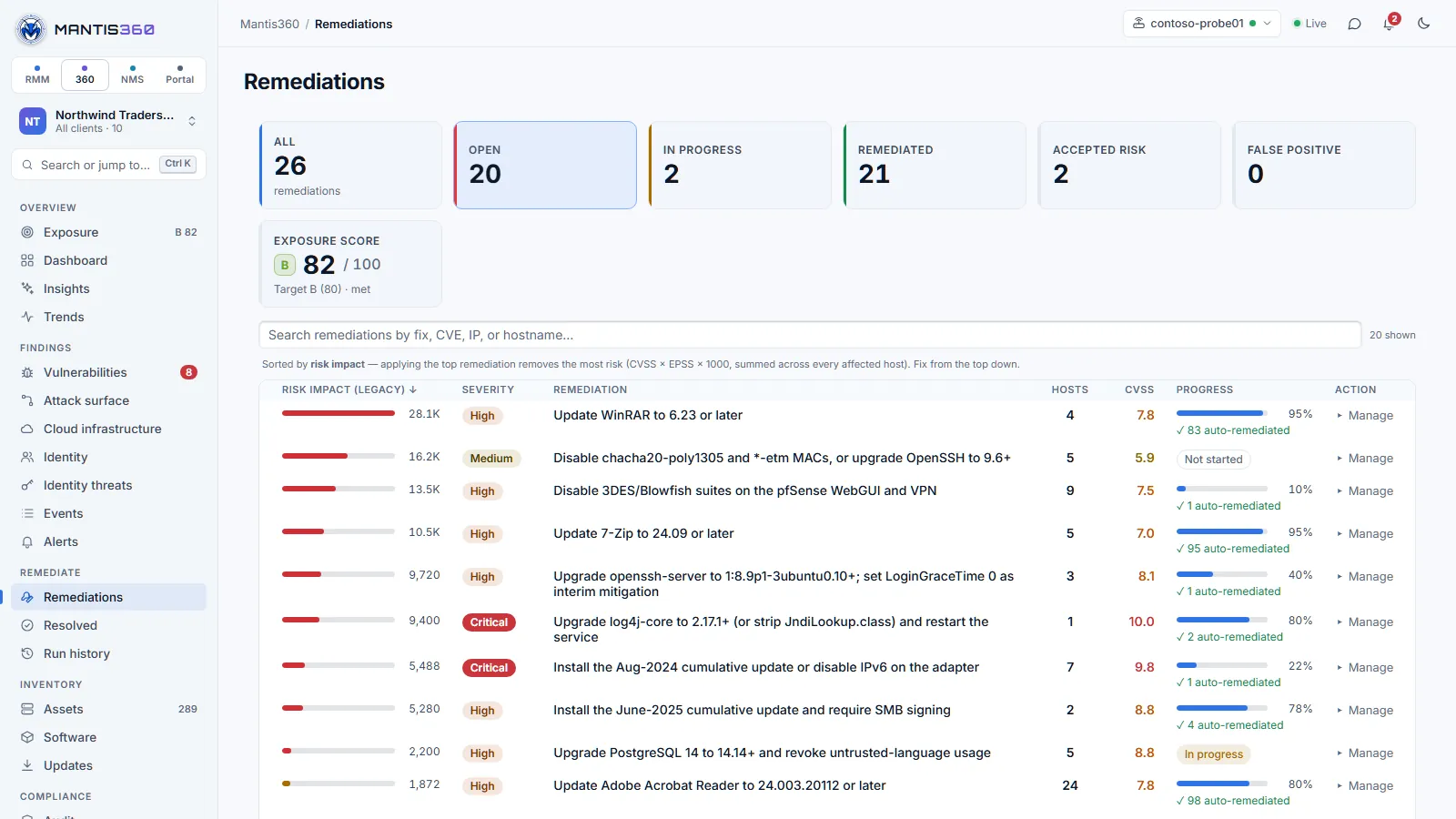
Bulk remediation
A Bulk action in Remediations applies to every finding the fix closes, on every affected host — useful after a patching cycle where many vulnerabilities were addressed at once. From a fix on the Exposure page, Open in Remediations takes you straight to it.
Network Scanning
The network probe is a separate binary that runs on any host inside a network segment. It performs continuous scanning of the subnet — no agent required on the target hosts.
Deploy a network probe
Install the probe on an always-on Windows or Linux host inside the network you want to scan. Copy the install command from the Customer Portal → Agents & Probes → Network Probe, or in Mantis360 from Settings → Admin → Sites → select a site → Probes → Show Install Instructions; it already contains your probe enrollment code. On Windows, run it in an elevated PowerShell:
The Linux command (which creates a systemd service) and everything else about probes are in the probe install guide. The probe registers under the host's machine name within about a minute and then appears under Settings → Admin → Probes & Updates.
Register the probe to your tenant
The probe enrolls with the config.json next to it: your server URL and your probe enrollment code. Copy the probe code from the Customer Portal → Agents & Probes → Enrollment codes (admins and owners can see it). A probe installed with a code is approved automatically — it does not wait in the approval queue. Since October 1, 2026 a new probe whose token is your tenant ID is refused — use the probe enrollment code.
config.json from its own directory (or the path in the MANTIS_CONFIG environment variable). On Windows, mantisprobe.exe install registers the MantisProbe service; on Linux the install command creates the mantis-probe systemd service. See the probe install guide.What the probe discovers
- Host discovery: ICMP ping sweep + ARP scan for the subnet
- Port scanning: Top 1,000 ports per host (configurable)
- Service fingerprinting: Banner grabbing and version detection on open ports
- CVE matching: Detected service versions matched against NVD database
- OS fingerprinting: TCP/IP stack analysis for OS identification
- SSL/TLS checking: Certificate expiry and cipher suite analysis on HTTPS/LDAPS/SMTPS
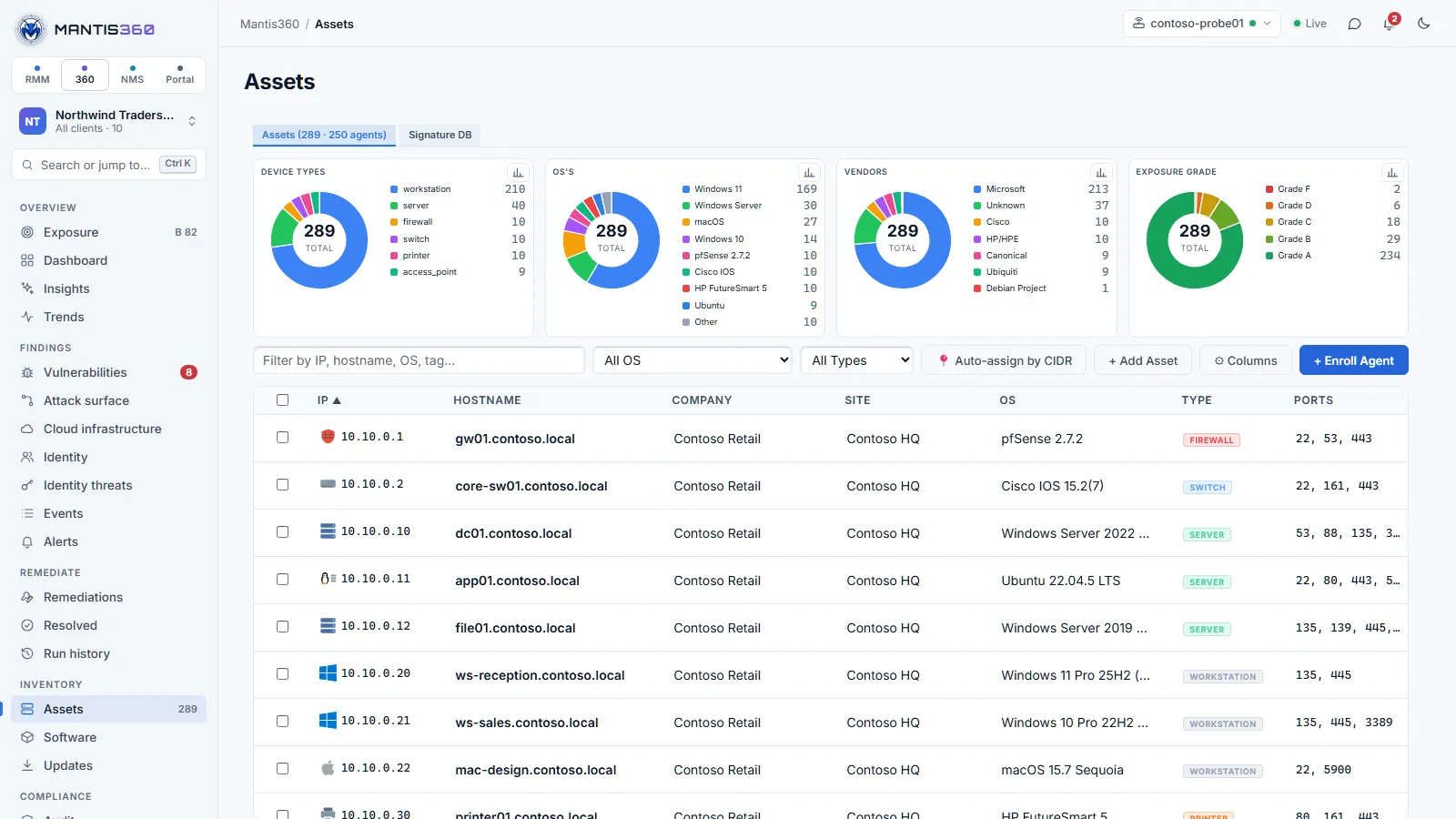
Scan intervals
Scheduled scans are set per site under Settings → Admin → Sites → select the site → Schedules. New devices are picked up the next time a scan runs — they do not appear automatically the moment they join the network. For quicker discovery, scan more often, or run a scan now from Tools → Scan: choose a scan type (Standard is the default), enter a CIDR, range or IP, and click Scan. The probe picker in the top bar chooses which probe runs it.
STIG Compliance
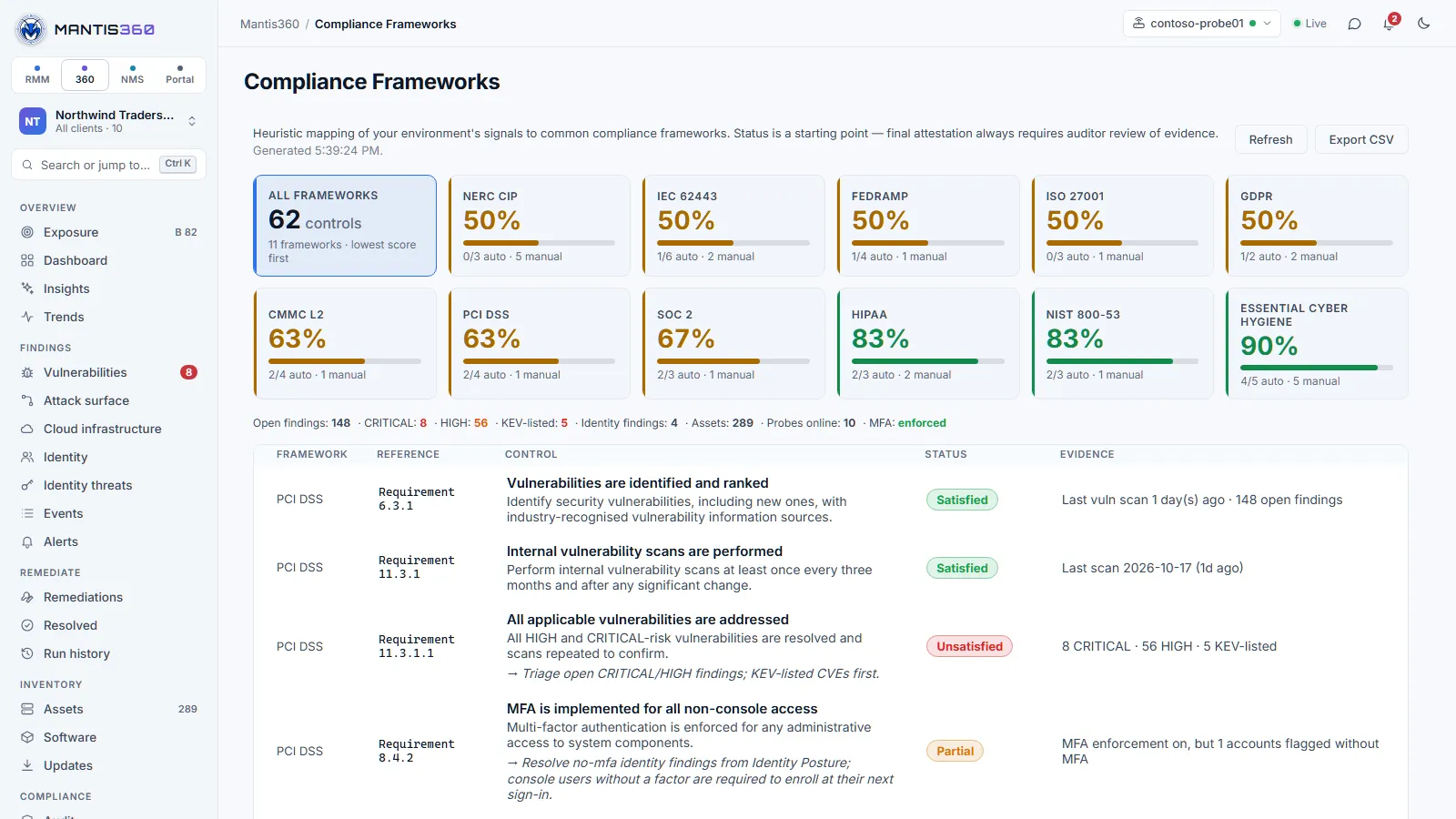
STIG (Security Technical Implementation Guide) compliance checks evaluate an endpoint's configuration against a security baseline. Mantis360 includes pre-built bundles for CIS and DISA STIG frameworks.
Available compliance bundles
| Bundle | Applies to |
|---|---|
| CIS Level 1 (Windows) | Windows 10, Windows 11, Windows Server |
| CIS Level 2 (Windows) | High-security Windows environments |
| DISA STIG Windows | DoD-aligned Windows hardening |
| CIS Linux Server | Ubuntu/Debian and RHEL/CentOS |
| Custom bundle | Define your own checks in JSON format |
Assign a bundle to assets
- Go to Settings → Admin → Compliance
- Under Posture Baselines, turn on the bundles you want (or Enable All). Your own bundles are listed under Custom Bundles; SCAP content is imported under SCAP Content
- Bundles attached to a parent site also apply to its child sites
- The bundles evaluate on the next agent check-in; results appear under Compliance → Audit
Reading compliance results
Each control in a bundle has a Pass / Fail / Not Applicable result. Failed controls show the current value vs. the expected value, plus a remediation suggestion. The overall compliance score is the percentage of applicable controls that passed.
Identity Exposure Scanning
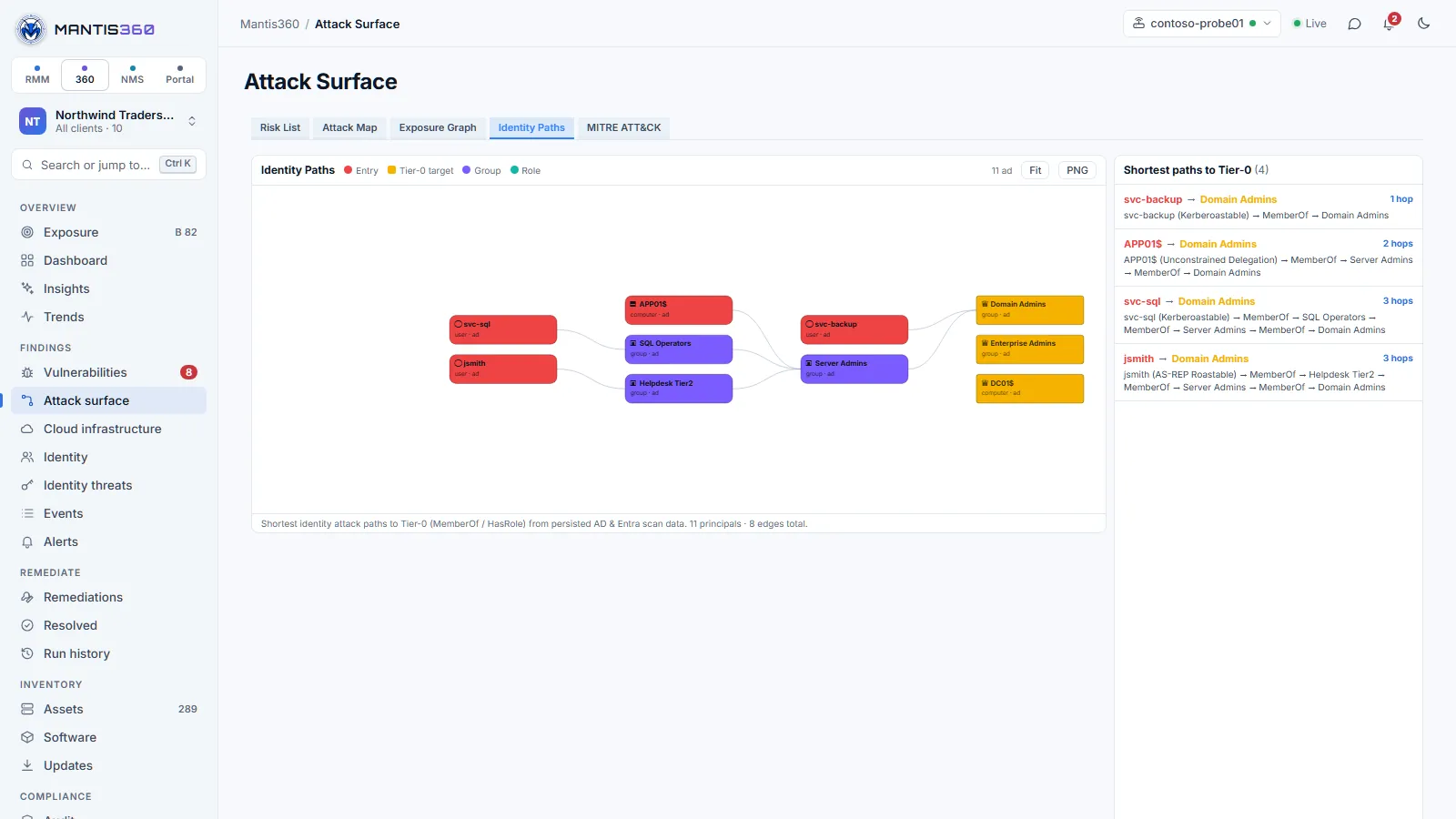
Identity exposure scanning checks your Active Directory environment for misconfigurations and over-privileged accounts that could be exploited for lateral movement or privilege escalation.
What is checked
- Stale accounts — users and computers that haven't authenticated in 90+ days
- Kerberoastable accounts — service accounts with SPNs vulnerable to offline cracking
- ASREPRoastable accounts — accounts with Kerberos pre-authentication disabled
- Weak password policy — domain password policy evaluation against best practices
- Domain admin exposure — accounts with unnecessary Domain Admin membership
- Unconstrained delegation — computers or accounts with risky Kerberos delegation settings
Enable identity scanning
Identity scanning runs from a probe that can reach a domain controller. Save an Active Directory credential in the Customer Portal → Credentials, then in Mantis360 go to Findings → Identity, open Run an Active Directory scan, pick the credential and the probe, and click Scan AD. AD scans typically take 1–6 minutes depending on directory size. The same page runs Microsoft 365 / Entra ID and AWS, Azure and Google Cloud posture scans.
ICS/OT Device Detection
When the network probe is deployed in an environment with industrial control systems or OT (operational technology) devices, Mantis360 identifies these using protocol fingerprinting and device signature matching.
Detection methods
- Protocol fingerprinting: Modbus, DNP3, BACnet, EtherNet/IP, Profinet
- Device signature matching: Known ICS device fingerprints (PLCs, HMIs, RTUs, SCADA systems)
- CISA ICS advisory matching: Discovered devices matched against active CISA ICS-CERT advisories
Detected ICS/OT devices appear in Inventory → Assets with an ICS/OT badge. Any active CISA advisories for the device type are shown inline.
AI Usage (Shadow AI)
Inventory → AI usage shows which AI tools people have installed, which self-hosted AI servers answer on your networks, and which AI services can be reached from the internet. Like every Mantis360 page, it follows the client you pick in the client switcher (All clients, one company or one site). It's built from data Mantis360 already collects, so there's nothing extra to install or turn on.
What the page shows
Four tiles sit across the top. Click one to open its tab.
| Tile | What it counts |
|---|---|
| Devices using AI apps | Devices with at least one app from the AI catalog, out of all devices with a software inventory, and how many of them have apps that aren't approved. |
| AI apps found | Distinct AI apps installed across those devices, and how many are not approved. |
| AI servers on the network | AI services seen in network scans, split into confirmed and port only (see below). |
| Internet-exposed AI | AI services the website Security Scan found reachable from the internet, and how many of those are critical. |
- Apps — each AI app with its category, the number of devices it's on, what the risk is, and whether it's approved. Click an app to see its versions and the devices it's installed on.
- Devices — each device with its AI apps (unapproved ones highlighted), the last user and when it was last seen. A computer that runs both the Mantis360 and MantisRMM modules of the agent is counted once.
- Network servers — AI services found by network scans, with severity, host, service, evidence and the last scan.
- Internet-exposed — AI services the Security Scan found on scanned hosts, with severity, the finding, the evidence and when the host was scanned.
The AI apps by category card breaks usage down by category; click a category to filter the Apps tab. On the Apps and Devices tabs you can also filter by category and search.
The AI app catalog
Mantis360 matches each device's installed-software inventory against a catalog of 54 AI apps. Matching is deliberately strict: an app is only listed when its own product name (and, for common words, its publisher) matches, so an unrelated program with a similar name isn't reported.
| Category | Examples |
|---|---|
| Assistants | ChatGPT, Claude, Microsoft Copilot, Perplexity, DeepSeek |
| AI browsers | ChatGPT Atlas, Comet, Dia |
| Coding tools | GitHub Copilot, Cursor, Windsurf, Claude Code, OpenAI Codex, Gemini CLI |
| Local LLM runtimes | Ollama, LM Studio, GPT4All, Jan, AnythingLLM, llama.cpp, Open WebUI |
| Image generators | ComfyUI, Stable Diffusion WebUI, Fooocus, InvokeAI, DiffusionBee |
| Meeting recorders | Otter.ai, Granola, Fathom |
| Writing assistants | Grammarly |
Approved and not approved
Every app is either Approved or Not approved. Microsoft Copilot, Microsoft 365 Copilot and GitHub Copilot start as approved, because they're usually licensed through the organization; every other app starts as not approved.
- Only admins can change it. Admins switch an app between Approved and Not approved in the Apps table, or click the app and use Reset to default. Other users see the status but can't change it. Each change is recorded in Settings → Activity.
- Approval applies to your whole account — every client — for now.
- Unapproved apps become findings. Each device running the Mantis360 module that has an unapproved app gets a LOW Unsanctioned AI app finding (for example
Unsanctioned AI app: Cursor). These findings show in Vulnerabilities and in reports, and count toward the exposure score. - Approving an app closes its findings on every device straight away. Marking it Not approved again opens them again. Uninstalling the app closes the finding on that device after its next inventory update.
AI servers on the network
When a network scan finds a well-known AI port open, Mantis360 checks what the scan captured on that port (its banner and web page) to tell which service it is:
- Confirmed by banner — the service identified itself, for example an Ollama server answering
Ollama is running. It's rated HIGH for Ollama, ComfyUI and Jupyter and MEDIUM for the others, one level higher when the host faces the internet, and raises a finding on the asset. - Port only — a distinctive AI port is open but the scan didn't capture anything that confirms the service. It's rated LOW and raises a "Possible AI service" finding worth a look.
| Port | Usually | Listed on the port alone? |
|---|---|---|
| 11434 | Ollama | Yes |
| 7860 | Gradio apps (Stable Diffusion WebUI, Fooocus, text-generation-webui) | Yes |
| 8188 | ComfyUI | Yes |
| 8888 | Jupyter | Yes |
| 1234 | LM Studio server | No — only when confirmed |
| 3000, 5000, 8000, 8080 | Open WebUI, the text-generation-webui API and model API servers | No — only when confirmed, since many other programs use these ports |
Ports 11434, 1234, 7860, 8188 and 8888 are in the default Normal port profile that scheduled scans use, and in Full. The Top 1000 profile (the default for a Standard scan in Tools → Scan) includes 1234 and 8888 only; to include the others in a one-off scan, choose Normal or Full under Advanced → Ports, or add them as custom ports.
Internet-exposed AI services
The website Security Scan (the Security Posture scan type in Tools → Scan, probe 1.3.262 or later) also checks each scanned host, on its own address and on the AI ports above, for AI services that answer without authentication. The checks are read-only: they only request status and model-list pages. They never send a prompt to a model and never pull, delete or run anything. A service is reported only when its answer matches the product, so an open port alone is never reported here.
| Example | Severity |
|---|---|
| An Ollama API that lists its models | CRITICAL |
| A Jupyter server without authentication | CRITICAL |
| Open WebUI without authentication | CRITICAL |
| ComfyUI, a Gradio app without a login, or a model API server open to the internet | HIGH |
| A login page or banner only (for example an Ollama banner whose API didn't answer) | MEDIUM |
The Internet-exposed tab shows results from the last 90 days, and only the latest scan of each host counts. When the scanned host is an asset Mantis360 already tracks, each result also becomes a finding on that asset; a later scan that no longer finds the service closes it automatically.
Typical fixes:
- Ollama — bind it to localhost (
OLLAMA_HOST=127.0.0.1) or put it behind an authenticating reverse proxy or VPN, and block TCP/11434 at the firewall. - LM Studio — in LM Studio → Developer, turn off Serve on Local Network, or require authentication.
- Jupyter — require a token or password, bind it to localhost, and reach it over SSH or a VPN.
- ComfyUI and Gradio apps — run them on localhost only (drop
--listen), or set a login and reach them over a VPN. - Anything else — firewall the port so it can't be reached from outside the networks that need it.
To share the results, run the AI Usage (Shadow AI) report from the Reports button on the page or from Compliance → Reports (see Reports).
Reports
Mantis360 provides several built-in report types for communicating vulnerability posture to stakeholders.
Available reports
Reports are under Compliance → Reports (the Exposure page's Reports button goes there too). The ready-made reports are Executive Summary, Top 10 Vulnerabilities, MITRE ATT&CK Findings, Exposure & Assets Over Time, Identity Posture, Attack Surface, Full Vulnerability Report, Asset Inventory and AI Usage (Shadow AI), and you can build a Custom Report. Compliance results are under Compliance → Audit and Frameworks.
AI Usage (Shadow AI) covers the AI usage page: the headline counts, internet-exposed AI services and AI servers on the network with their evidence, and every AI app found with its device count, approval and risk. It's also available as a section in a Custom Report.
Generate a report
- Pick the client in the client switcher (or All clients) — the report covers that scope
- Go to Compliance → Reports and choose a report
- Under Include severities, tick the levels you want
- Click Generate, then Save as PDF or Download HTML
To email a report on a schedule, use Schedule → + New Schedule.
Submit a support ticket via our support page or email support@mantisops.net. We respond within one business day.