MantisRMM · Getting Started Guide
MantisRMM Getting Started
This guide walks you through everything you need to get MantisRMM running — from installing your first agent and reading device health to building automated remediation workflows. Follow the steps in order if you're new, or jump to any section using the sidebar.
Overview
MantisRMM is a cloud-native remote management platform that runs on Cloudflare's edge. There is nothing to install on your end for the management portal — it's a web application at rmm.mantisops.net. The only software you install is a lightweight agent on each managed endpoint.
Key concepts:
| Concept | Description |
|---|---|
| Tenant | Your organization's isolated environment. All your devices, scripts, users, and settings live here. |
| Device | A managed endpoint (Windows, Linux, or macOS) running the small MantisOps agent background service. MantisRMM lists them under Devices. |
| Company (client) | A grouping of devices — typically a customer or business unit. The client switcher and the Devices client tree use your companies. |
| Site | A physical or logical location within a company, used for organizing devices and network probes. |
| Group | A sub-grouping within a site — by role, location, OS, etc. |
| Health score | A 0–100 score with an A–F grade for each device, built from its patch, security and disk checks. See Devices & Health. |
| Script | A PowerShell, Bash, or Python script that can be run against devices manually or on a schedule. |
| Workflow | A multi-step automation that chains scripts, notifications, and conditions. |
Finding Your Way Around
MantisRMM's labelled sidebar on the left has two sections: Monitor (Dashboard, Devices, Alerts, Event log) and Manage (Updates, Software, Scripts, Workflows, Policies, Files, Reports, and Admin settings for admins). Collapse sidebar shrinks it to a rail of icons; on a phone it opens as a drawer from the menu button.
- Product and client switchers — at the top of the sidebar. Jump between MantisRMM, Mantis360, MantisNMS and the Customer Portal, and choose All clients or one company. Every page follows the client you pick.
- Search — press Ctrl K (⌘K on a Mac) or click Search or jump to… to find a device by name, hostname, IP, user, tag or OS, jump to a page or client, or run an action such as Show devices that need attention.
- Top bar — the breadcrumb shows where you are. Chips show open alerts and available agent updates; click one to go straight to them.
- Plan meter — near the bottom of the sidebar: devices used against your plan, how many are online, and days left in a trial.
- Your menu — click your account at the bottom of the sidebar for Theme (Dark or Light), Rows (Comfortable or Compact), Preferences, Admin settings, Copy tenant ID and Sign out. MantisRMM starts in the dark theme; once you choose one, your choice is kept.
Install Agents
Agents are single-binary executables. They connect outbound to the MantisRMM API over HTTPS — no inbound firewall rules required.
Step 1 — Get your installer
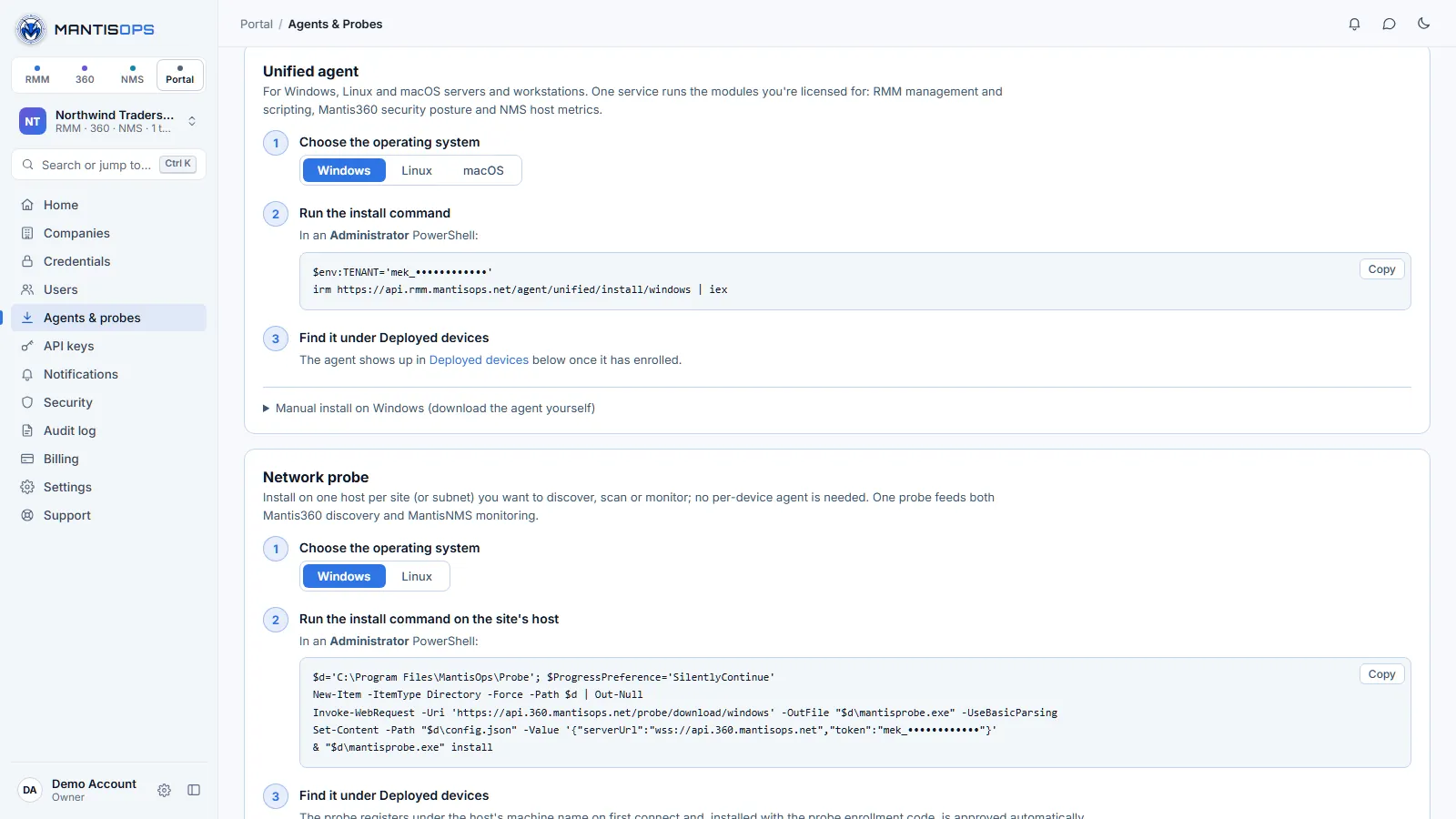
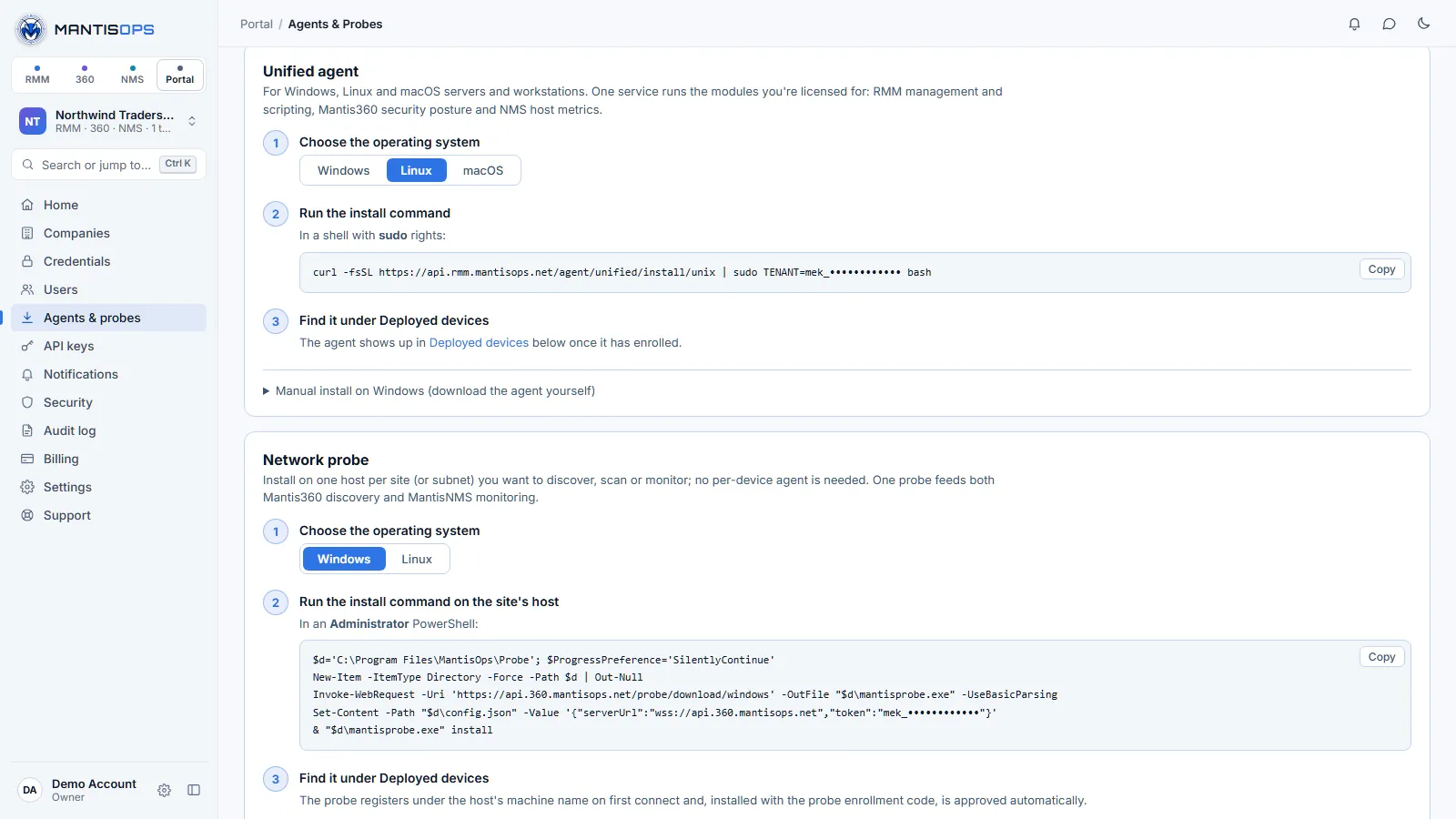
Copy the one-line install command for your platform from the Customer Portal → Agents & Probes, or in MantisRMM under Devices → + Add device. The commands there already contain your enrollment code.
Install commands use your enrollment code (it starts with mek_). Find it in the Customer Portal (portal.mantisops.net) → Agents & Probes → Enrollment codes; admins and owners can see it. One code enrolls the endpoint into every MantisOps product your account is licensed for. If a code leaks, rotate or revoke it there — agents that are already installed are not affected.
The one-line installers, with your code in place of the placeholder:
WindowsPowerShell, as Administrator:
Step 2 — Install on Windows
WindowsRun the PowerShell command as Administrator
Paste the Windows command above into an elevated PowerShell. It installs the agent to C:\Program Files\MantisOps as the Windows service MantisAgent ("MantisOps Unified Agent"), starts it, and finishes with Done! Unified agent enrolled and running as a service.
Group Policy, Intune and other mass deployment
The Portal has a ready-made Group Policy startup script, and the same one-line command works from Intune or another RMM. See Mass deployment in the agent install guide. Users can also install with the MantisOps Setup installer and a setup code.
Step 3 — Install on Linux
LinuxRun the Linux command above as root (or with sudo). It installs the agent to /usr/local/bin/mantis-agent and creates the systemd service mantis-agent, which starts at boot.
To check the agent status:
sudo.Step 4 — Install on macOS
macOSRun the macOS command above in Terminal. It installs the signed, Apple-notarized agent package (/Applications/MantisAgent.app) and a launch daemon that starts at boot. For remote desktop, grant MantisAgent Screen Recording and Accessibility in System Settings → Privacy & Security, or pre-approve them with an MDM profile: see macOS privacy permissions.
Unattended install — target a specific tenant
The one-line commands above are non-interactive, so mass deployment (another RMM, an MDM, imaging, or Group Policy) uses the same commands. Enrolling with a code needs agent 2.0.194 or later; the install commands always download the latest agent. For Group Policy, use the ready-made script and its dedicated GPO code from Agents & Probes: every domain user can read GPO scripts, so keep that code separate and rotate it if a script leaks. Step-by-step instructions for Group Policy, Intune and macOS MDM, and the agent's command-line options, are in the agent install guide.
--enroll code brings the endpoint online for every MantisOps product your tenant is licensed for, Mantis360 included. No separate 360 token is needed.Verify the agent is online
Within 30–60 seconds of installation, your endpoint should appear in the Devices list as online. If it doesn't appear after 2 minutes, check that the endpoint has outbound HTTPS (port 443) access to api.rmm.mantisops.net.
Devices & Health
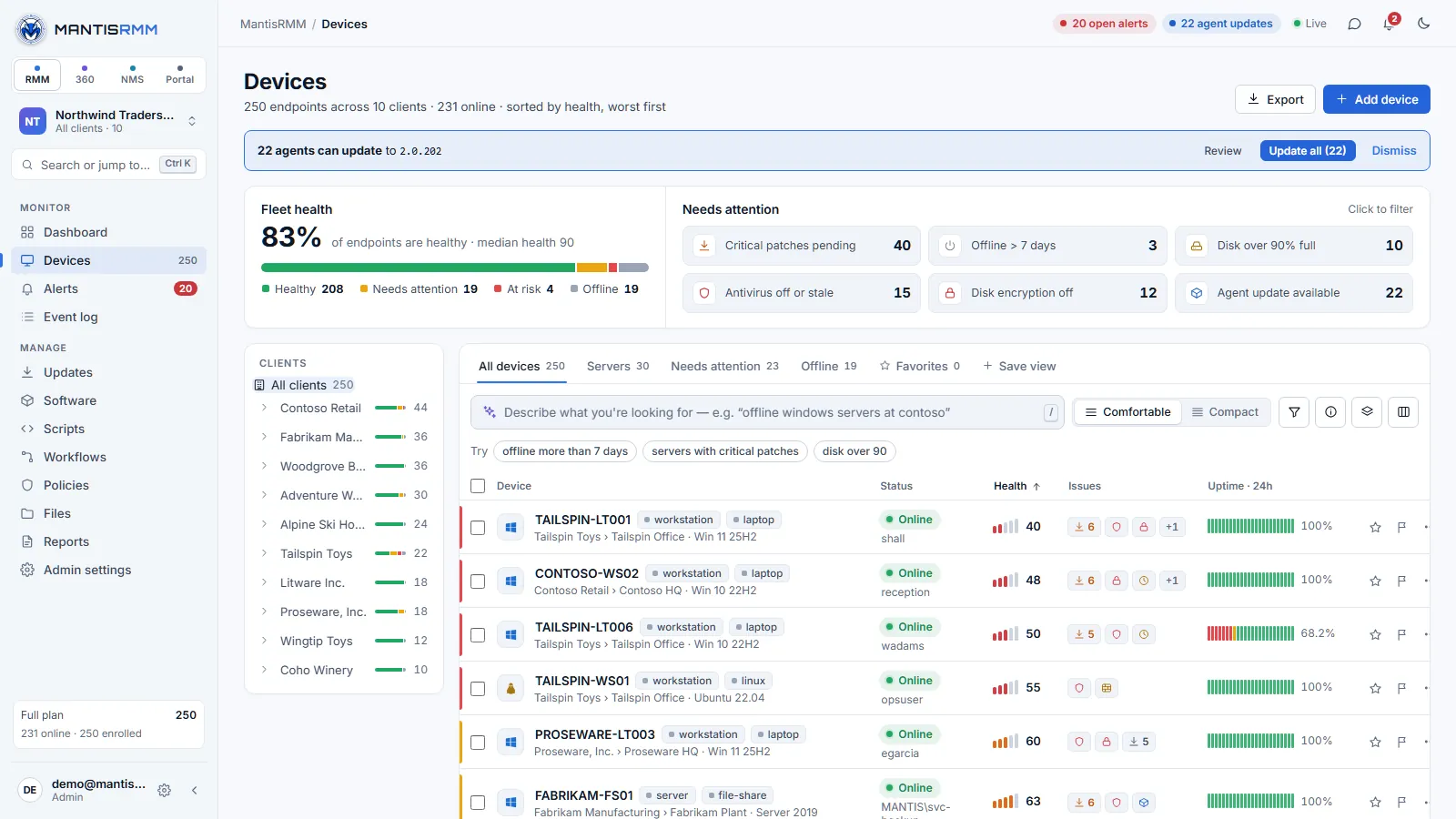
Monitor → Devices lists every managed endpoint, sorted by health with the worst first.
Health score
Each device gets a health score from 0 to 100 and a grade: A 90 or more (Excellent), B 80–89 (Good), C 70–79 (Fair), D 60–69 (Poor) and F below 60 (Critical). The score is a weighted checklist:
| Check | Weight |
|---|---|
| Critical patches | 20 |
| Disk encryption | 15 |
| Antivirus | 15 |
| OS support | 15 |
| Firewall | 10 |
| Disk space | 10 |
| Secure Boot · TPM | 5 |
| User Account Control | 5 |
| Agent | 5 |
A check that's only a warning earns half its weight. Devices scoring 80 or more count as Healthy, 60–79 as Needs attention and below 60 as At risk.
The Devices list
- Fleet health — the share of healthy endpoints and the median score, with a health bar you can click to filter. The Needs attention tiles (critical patches pending, offline more than 7 days, disk over 90% full, antivirus off or stale, disk encryption off, agent update available) filter the list too.
- Each row shows the device's status, its health score, up to three issue chips (for example critical patches, antivirus off or disk 90% or more) and an Uptime · 24h strip with one tick per hour.
- Clients — the tree on the left (on wide screens) lists every company with a small health bar; expand a company to pick a site.
- Plain-English filter — type what you're looking for, for example
offline windows servers at contoso,disk over 90orantivirus off. MantisRMM shows how it read your words as Understood as chips with the number of matching devices; Save as view keeps the filter as a tab. Press/to jump to the box. Typingfield:valueuses the structured query syntax instead. - Density — switch between Comfortable and Compact rows from the toolbar.
- Bulk actions — tick devices to open the bulk bar: Run script, Reboot…, Tag, Assign client…, Site / group…, and under the overflow menu Run workflow…, Send notification…, Update agent and Export selected as CSV.
A device's Overview
Click a device to open it. The tabs are Overview, System, Software, Updates, Users & groups, Alerts, History and Settings. The Overview shows:
- What needs attention — a one-line headline (for example two critical patches pending and BitLocker off) with what fixing it would do to the score, and buttons to Review or fix it straight away.
- Health score — the score, grade and change since last week, compared with the fleet and client median, and the checklist behind it (How it's scored).
- Performance — CPU, memory, storage and network for the last 1h (live), 24h or 7d, with a forecast of when the fullest volume will run out of space.
- Availability — an uptime strip for 24h, 7d or 30d with the number of drops.
- Across MantisOps — the same device as Mantis360 and MantisNMS see it: its security exposure in Mantis360, and its network path in MantisNMS (switch, port, VLAN and MAC), each with a link to open it there.
- Pending patches, recent alerts and activity, and quick scripts.
The dashboard's Fleet health widget shows the same healthy share, health bar and needs-attention items, plus the clients with the lowest median health.
Companies, Sites & Groups
Companies let you organize devices by customer or business unit. Sites and groups add more levels within a company — useful for separating locations, workstations or servers.
Create a company
- Companies are shared by every MantisOps product, so they're created in the Customer Portal: Companies → + Add Company
- Enter the company name and save — it appears in MantisRMM's client switcher and client tree
Create a site or group
- In Devices, click the Sites and groups button in the toolbar
- Click + Site or + Group, or use a site's menu → Add Group
- Name it (e.g., "Workstations", "Servers", "US-East")
Assign a device to a company, site or group
In Devices, open the device's ⋯ menu → Assign company…. For several devices at once, tick them and use Assign client… or Site / group… in the bulk bar. A device belongs to one company and one group at a time.
Users & Roles
MantisRMM supports multiple users per tenant with role-based access control. Users and roles are managed in the Customer Portal and apply across MantisOps; MantisRMM's Admin settings → Users shows the list with a link to the Portal.
Roles
The account owner and admins have full access. For everyone else, create roles in the Portal under Users → Roles & Permissions → + New Role, and set each feature to No Access, View Only or Full Edit — for example a technician role that can use remote desktop and run scripts but not change settings.
Add a user
- In the Customer Portal, go to Users → + Add User
- Enter the user's name and email address and select their role
- Click Save — they'll receive a welcome email with a link to set their own password
Scoped technicians (per-company access)
If you want a technician to only see devices belonging to specific companies, set Company Access on their role (and, to narrow it further, RMM Device-Group Access). Scoped technicians cannot see devices from other companies.
Remote Access
MantisRMM provides several remote access methods — each suited to different tasks.
Remote Desktop (Windows)
Open an online Windows device and click Remote desktop (or click the OS icon on its row in Devices, or use the row's ⋯ menu). A new browser tab opens with a full desktop session. Features:
- Bidirectional clipboard — copy/paste text between your machine and the remote endpoint
- Branded notifications — a connect and disconnect toast is shown on the remote desktop so the end user knows someone is connected
- Session sharing — share a session link with another technician (same tenant)
Remote Terminal / Shell
Available on all platforms. Open a device and click Terminal to open an interactive shell session directly in the browser:
- Windows: PowerShell or cmd.exe
- Linux: bash
- macOS: zsh
File Manager
Browse the remote filesystem, upload files from your local machine, and download files from the endpoint — available on all platforms from the device's ⋯ menu → File Browser (the same menu has Processes, Services, and on Windows Registry, Event Viewer and System Info).
Scripts & Automation
Scripts are reusable PowerShell, Bash, or Python programs you can run against one or multiple devices. They support variable substitution, agent field references, and custom field read/write.
Create a script
- Go to Manage → Scripts → the Custom tab → + New Script (the Built-in Library tab has ready-made scripts)
- Enter a name, description, and select the language (PowerShell / Bash / Python)
- Write your script in the editor. Use the Variables tab to add user-supplied variables and the ? Ref button to see all available substitution tokens.
- Click Save
Variable substitution
Three types of variables can be embedded in scripts:
| Syntax | Type | Notes |
|---|---|---|
{{VARNAME}} | User variable | Prompted when running manually. Define in the Variables tab. |
{{AGENT:hostname}} | Agent field | Read-only. Populated automatically from the agent at runtime. |
{{FIELD:label}} | Custom field | Readable and writable. Reads current value; write via stdout. |
Available agent fields
Use these in scripts as {{AGENT:fieldname}}:
Writing back to custom fields
To update a custom field from a script, print a line to stdout in this format:
MANTIS_FIELD: line per field.Run a script against devices
- Open a device and click Run script (or use Run Script in its ⋯ menu). For many devices, tick them in Devices and click Run script in the bulk bar
- Choose the script and fill in any required variables
- Click Run Script — results appear in real time
Workflow Automation
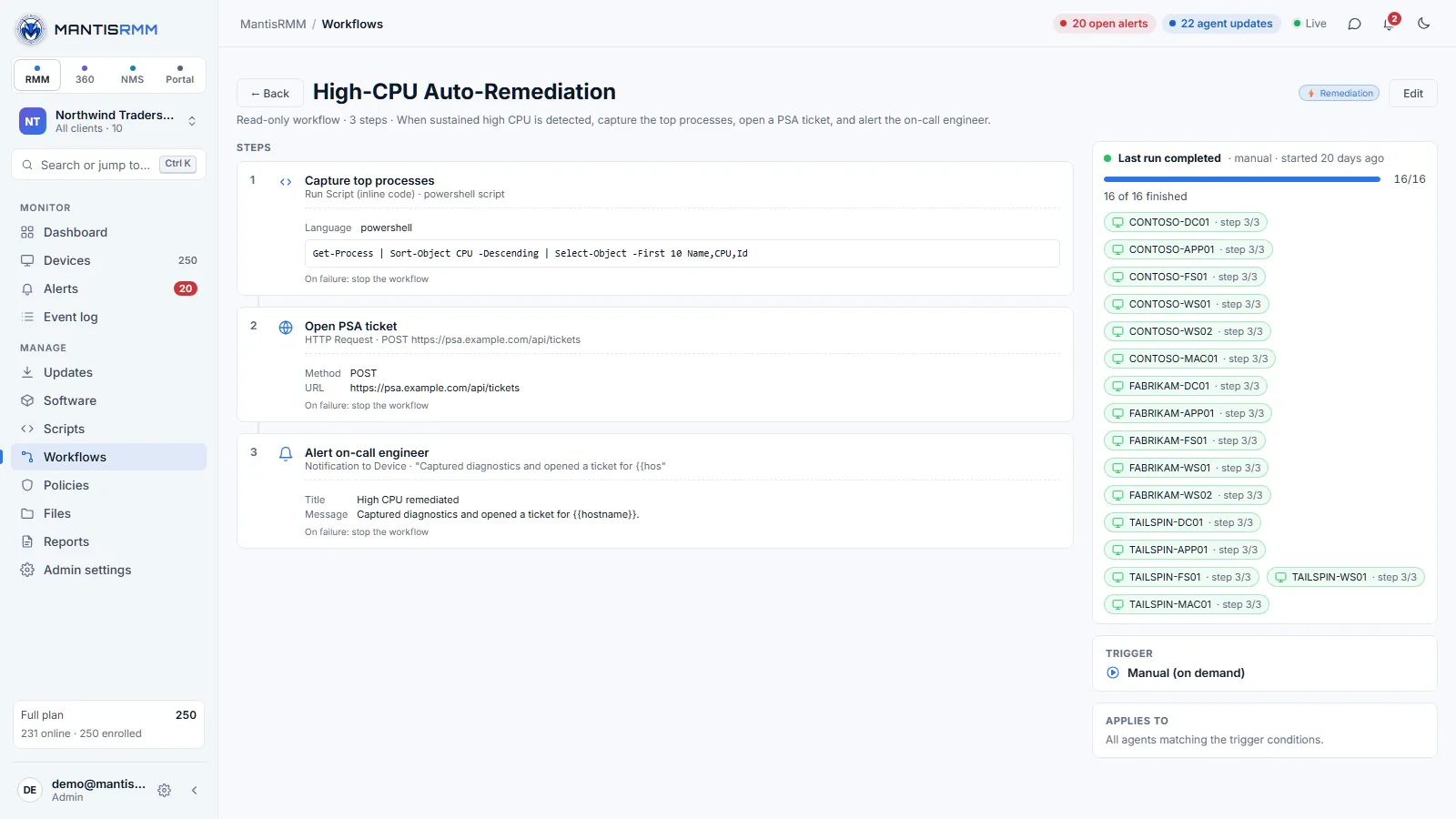
Workflows chain multiple steps together — scripts, conditions, delays, and notifications — and can be triggered on a schedule or manually.
Create a workflow
- Go to Manage → Workflows → + New Workflow, or start from Browse templates
- Choose a trigger: Manual (on demand), Scheduled, Run once at…, or an event such as New device detected, Agent went offline or Alert is triggered
- Add steps from the step palette; for a Run Saved Script step, select the script and configure variable overrides
- Save the workflow
Workflow step types
| Step | Description |
|---|---|
| Flow | Run Workflow, Set Variable, Delay, Wait for Operator Input, Exit Workflow |
| Scripts | Run a saved script or inline code, start or stop a process |
| Services, registry & files | Manage a service, set or delete a registry key, download a file |
| Metadata | Set a custom field, add or remove a tag, add the device to a group |
| Security | Enable or disable disk encryption, rotate the BitLocker key, run a Defender scan |
| Updates & packages | Windows updates (including patch to completion), Linux and macOS updates, restart, and Winget, Linux and Homebrew packages |
| Notify | Send a notification to the device, send an email, or make an HTTP request |
Patch Management
MantisRMM provides Windows Update management and Winget software deployment from the portal.
Windows Update
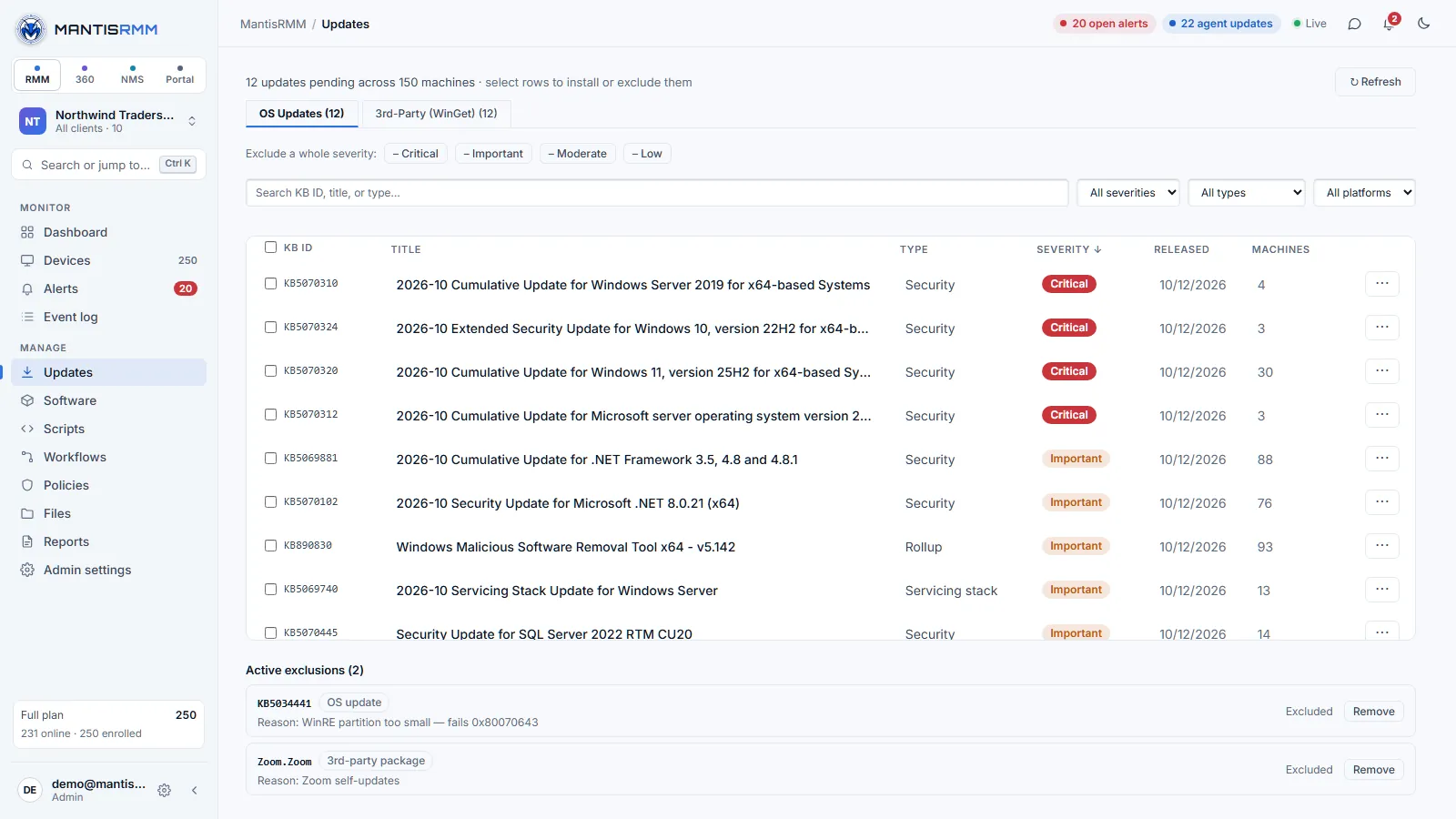
Open a device and click the Updates tab to see all its pending Windows updates; Manage → Updates shows them across the fleet. You can install individual updates or run Install All to apply everything. To patch on a schedule, use a workflow with a Scheduled trigger and the Install Windows Updates (patch to completion) step (see Schedules).
Winget software management
From the Software tab on any Windows device, you can:
- View all installed software with version and publisher
- Search the Winget repository and install packages silently
- Uninstall software by name
- See which installed packages have available updates
Schedules
To run scripts or other actions automatically against devices on a recurring basis, give a workflow a schedule. There is no separate Schedules page.
Schedule a workflow
- Go to Manage → Workflows and create or open a workflow
- Under the Schedule triggers, choose Scheduled (recurring) or Run once at…
- Add the steps to run — for example a Run Saved Script step — and choose the target devices
- Save — the schedule is active immediately
Automation policies (Manage → Policies → Automation (cron / triggered)) also have a schedule.
Alert Rules
Alert rules monitor device status and notify you when conditions are met.
Available alert triggers
- Agent offline — fires when a device hasn't checked in after a configurable timeout
- Agent came back online — fires when a previously offline device reconnects
- CPU / memory / disk threshold — fires when resource usage exceeds a set percentage
- Script failure — fires when a scheduled script exits with a non-zero code
Create an alert rule
- Go to Monitor → Alerts → the Rules tab → + Add Rule (the Script Monitors and Event Log tabs have + Add Monitor)
- Select the trigger type and configure thresholds
- Enter one or more notification email addresses
- Set the scope: all devices, a specific company, or a specific group
- Save — the rule is active immediately
Agent Policies
Policies define configuration and compliance expectations for groups of devices. Manage → Policies has three kinds: Posture (compliance) checks, Configuration (GPO-style) policies (when enabled for your account) and Automation (cron / triggered) policies.
Create a configuration policy
- Go to Manage → Policies → Configuration (GPO-style) → + New Policy
- Define the settings to apply — as JSON, or by pasting or importing a GPO report
- Set the Apply interval (seconds) (how often to re-apply)
- Save the policy
Assign a policy to a site or group
In the policy's Assignments section, pick a Site or Group and click Assign. All devices there will be evaluated against the policy.
Custom Fields
Custom fields let you attach structured metadata to devices — asset tags, warranty expiry, owner names, location codes, and anything else your team needs.
Create a custom field definition
- Go to Admin settings → Security → the Custom Agent Fields card → Add
- Enter a label (e.g., "Asset Tag"), field type (text, number, date), and an optional default value
- Save — the field is immediately available on all devices
Set field values on a device
Open a device → the System tab → Custom Fields → edit any field value inline. Values can also be written from scripts using the MANTIS_FIELD: output pattern (see the Scripts section).
Use field values in scripts
Read a custom field value inside a script with {{FIELD:label}}. The value is substituted at script execution time before the script is sent to the device.
Submit a support ticket via our support page or email support@mantisops.net. We respond within one business day.